Shark robot vacuum error 5: a drive wheel is stuck
Shark error 5 means a drive wheel is stuck and cannot turn. The quickest fix is to turn the robot off, flip it over, pull out the hair and string wrapped around the wheel axles, then press each wheel down and spin it by hand.
Researched by the robotsforthat team · updated Oct 27, 2026 · How we research
Find your code
Affiliate links. We may earn a commission at no cost to you.
Error 5 on a Shark robot vacuum means a drive wheel is stuck. The usual cause is hair, string or carpet fibers wrapped around the wheel axles, or dirt packed in the wheel housing. Turn the robot off, flip it onto a towel, clean the wheels and remove anything wrapped around the axles, then press each wheel down, let it spring back and turn it by hand. If the error returns with clean wheels, contact SharkNinja support.
| What you see | Likely cause | Fix |
|---|---|---|
| Error 5 in the app or on the robot | Hair or string wrapped around a drive wheel axle | Power off, flip the robot, clean the wheels and remove any debris wrapped around the axles so they move freely. |
| Wheel feels gritty or stiff when turned | Dirt packed in the drive wheel housing | Rotate each wheel while you dust the housing around it. Shark says to clean the drive wheels and housings periodically. |
| Wheel stays pushed up into the body | Wheel suspension caught on debris | Press down on each wheel and let it spring back into place, then turn it back and forth by hand. |
| Robot sits on a rug edge, cord or threshold | Wheel lifted or caught so it cannot get grip | Move the robot to a new spot on a level floor and restart. Pick up cords before the next run. |
| Front wheel does not roll | Hair or dirt in the front wheel housing | Pull the front wheel out of its housing, clear the debris, and refit it. Shark's ION guide says to clean it weekly. |
| Error 5 shown together with Error 18 (Matrix 2300 series) | Wheel motor encoder failure | Clear the wheels first. If Error 18 stays, call Shark customer service at 1 888 228 5531. |
| Error 33 on PowerDetect or Detect Pro | Blockage in the Active Lift wheel suspension | Turn the robot off and make sure nothing stops the wheel suspension from moving up and down. |
| Error 5 returns with clean, free wheels | Worn wheel or a fault in the wheel module | Contact SharkNinja support. The owner's guides send any problem the chart does not solve to customer service. |
From Shark owner's guides for the PowerDetect NeverTouch RV2800YE, PowerDetect RV2800S, Matrix RV2300AE and ION RV750, checked October 27, 2026.
What to do next
If it keeps coming back, contact Shark support first, especially under warranty. Out of warranty, compare the repair quote with a new robot.
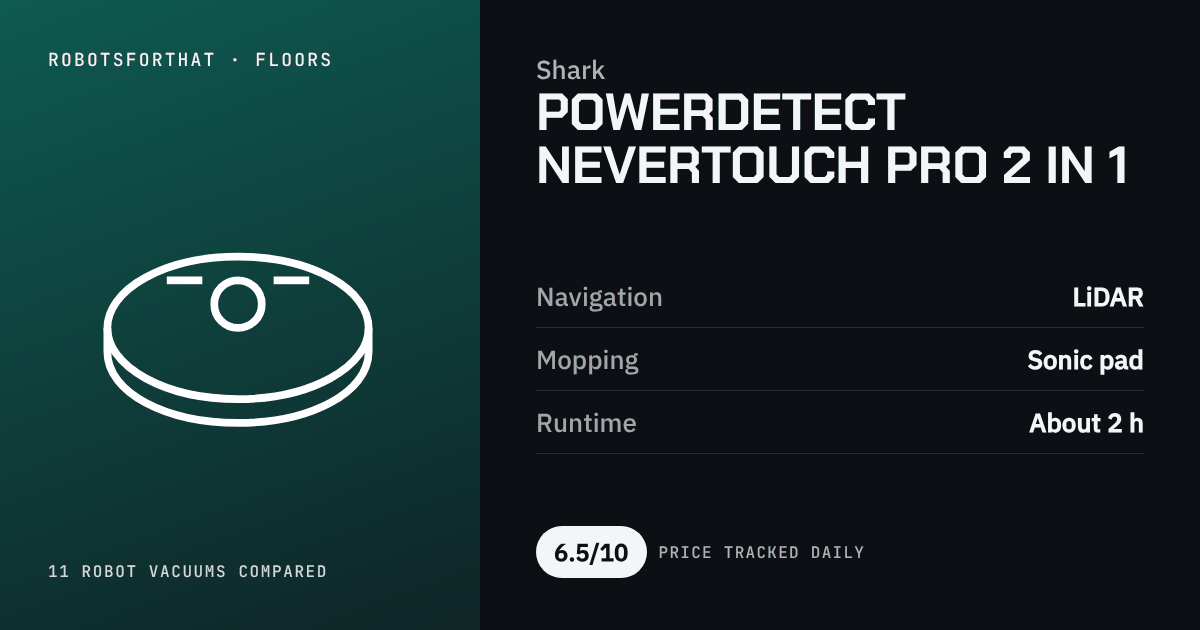 Our top pick from SharkShark PowerDetect NeverTouch Pro 2 in 1$500Compare robot vacuums →
One email for recalls, bad updates and new fixes for Shark. Nothing else.
Shark recalls
We read every question. When several owners ask the same thing, the answer goes on this page.
1. Free the drive wheels, step by step
Every Shark guide we checked gives the same answer for error 5: clean the wheels and remove any debris wrapped around the axles so they can move freely. These steps combine the RV2800 series and ION RV750 guides, in order. We do not test robots hands on, so they come from Shark's own owner's guides.
- Turn the robot off. On PowerDetect models, press and hold the DOCK icon on the robot for 5 to 7 seconds. On older ION robots, flip the power switch on the side to off.
- Turn the robot over on a soft towel.
- Look at both drive wheels where the axle meets the body. Pull out hair, string and carpet fibers wrapped around the axles.
- Rotate each wheel by hand while you dust the wheel housing with a dry cloth or small brush.
- Press down on each wheel and let it spring back into place. Turn it back and forth. It should move smoothly with no grinding.
- Pull out the front wheel, clear the debris in its housing and refit it.
- Put the robot on a level floor away from cords and rug edges, turn it on and start a short clean.
2. Which Shark models show error 5, and how
App connected robots such as the PowerDetect NeverTouch RV2800 series, the PowerDetect RV2800S and the Matrix RV2300 series show the number in the SharkClean app with the same wording: "A drive wheel is stuck." Robots without a screen show error 5 as a light pattern, and the pattern changes by model, so match it against the chart in your own owner's guide.
The older ION RV750 has no numbered codes. Its guide lists "A drive wheel is stuck, remove debris from wheel" and a separate entry for wheels that are stuck or have something caught in them, where Shark says to press down on the wheels and let them spring back. On the Matrix 2300 series, error 18 can appear alongside wheel errors and points to a wheel motor encoder failure. PowerDetect and Detect Pro robots have a separate error 33 for a blocked Active Lift suspension.
3. The part to replace if error 5 keeps coming back
Start with the front wheel, since it is the cheapest part. Shark's ION guide says to clean it weekly and replace it every 12 months. SharkNinja sells the Shark 360 Robot Front Wheel (141KY2500) for $9.99, listed for Matrix RV2300, PowerDetect RV2800S and many other series.
If the drive wheel itself grinds, wobbles or will not spring back after a careful clean, the drive wheel module or its motor is the likely problem. Shark's guides do not show a home repair for the drive wheels, so for a worn drive wheel or an error 18 encoder fault, go through SharkNinja support rather than opening the robot.
4. When to call SharkNinja, and when to replace the robot
Shark robots carry a one year limited warranty for purchases from authorized SharkNinja retailers. If error 5 returns with clean wheels, call SharkNinja customer service at 1 888 228 5531 before you buy parts, and mention any error 18 or error 33 you have seen.
Out of warranty, a drive wheel repair costs more than a brush or filter. If the robot also has a weak battery and other recurring errors, compare the repair quote with a new robot. Our Shark error code page lists the other codes that often show up with error 5.
Questions people ask
What does error 5 mean on a Shark robot vacuum?
It means a drive wheel is stuck. Shark's owner's guides say to clean the wheels and remove any debris wrapped around the axles so they can move freely.
Why does my Shark show error 5 when the wheels look clean?
Hair often wraps tightly where the axle enters the body, out of sight. Dirt in the wheel housing or a wheel that does not spring back can also cause it. Press each wheel down, let it spring back and turn it by hand.
How do I clean the wheels on a Shark robot?
Turn the robot off, flip it over and rotate each wheel while dusting the wheel housing. Pull hair off the axles and remove the front wheel to clean its housing.
What is the difference between Shark error 5 and error 18?
Error 5 means a drive wheel is stuck. On the Matrix 2300 series, error 18 points to a wheel motor encoder failure, and Shark says to call customer service for it.
Can I replace a Shark drive wheel myself?
Shark sells the front wheel as a part, but its owner's guides do not show how to replace a drive wheel. Contact SharkNinja support for a drive wheel fault.
Related
Read next

Sources
- Shark: PowerDetect NeverTouch RV2800YE series owner's guide, error codes (hosted by ManualsLib)
- Shark: PowerDetect NeverTouch RV2800YE series owner's guide, wheel maintenance (hosted by ManualsLib)
- Shark: PowerDetect RV2800S owner's guide, error codes (hosted by ManualsLib)
- Shark: Matrix RV2300AE owner's guide, error codes (hosted by ManualsLib)
- Shark: ION Robot RV750 owner's guide, troubleshooting (hosted by ManualsLib)
- Shark: ION Robot RV750 owner's guide, wheel care (hosted by ManualsLib)
- SharkNinja: Shark 360 Robot Front Wheel 141KY2500