Dreame robot mower error codes: what each message means and the fix
Dreame robot mower errors are text messages, not numbers. The Dreamehome app shows them when an A2 or A3 AWD mower stops. Dreame's manuals list 35 of them with a fix for each, and all 35 are here.
Researched by Riley Hart · updated Nov 12, 2026 · How we research
Find your code
Affiliate links. We may earn a commission at no cost to you.
Dreame robot mowers show errors as written messages in the Dreamehome app, such as Robot trapped, Blade disc can't rotate or Failed to dock in the charging station. Most fixes are physical: clear the obstacle, clean the blade disc, wheels, LiDAR or camera, then restart. Safety messages like Robot lifted, Robot tilted and Emergency stop is activated need you to enter the PIN on the mower. If a message survives cleaning and a restart, Dreame says to contact after-sales service.
| Error message | What it means | Fix from Dreame |
|---|---|---|
| The robot is not connected to the app | The app cannot reach the mower | Check the robot has finished starting up and the router works, then move closer to connect over Bluetooth |
| Robot lifted | A wheel has lost contact with the ground | Put the robot back on flat ground and enter the PIN on the robot to confirm. Keep the ground even |
| Robot tilted | The mower is tilted past its safe angle | Put the robot back on flat ground and enter the PIN on the robot to confirm. Keep it off slopes past its rated limit |
| Robot trapped | The mower is stuck and cannot free itself | Clear obstacles, move it to an open spot in the map, fill holes, cut grass over 10 cm first and set repeat trap spots as no-go zones |
| Wheel error | A wheel cannot turn or its motor has a fault | Clean the wheels and try again, then restart the robot |
| Blade disc can't rotate | The blade disc is blocked or the cutting motor has a fault | Clean the blade disc, cut grass over 10 cm first, move the robot out of water, then restart it |
| The blade disc fails to move up or down | The cutting height cannot change | Clean the blade disc and try again, then restart the robot |
| The blade disc cannot move to the side | The sideways edge cutting movement is blocked | Clean the cutting system and remove debris. If it continues, turn off EdgeMaster |
| Bumper error | The front bumper sensor stays triggered | Check the robot is not stuck, tap the bumper to check it springs back, then restart |
| Charging error | The mower is docked but the charging current or voltage is wrong | Check the station has power, clean the charging contacts on the robot and station, then dock again |
| Battery temperature too high | The battery is at 60 °C or more | Use the robot below 40 °C and let the battery cool, or turn it off and restart it later |
| Battery temperature is high | The battery is at 45 °C or more, so charging may fail | Charging may fail. Use the robot where the air is below 40 °C |
| Battery temperature is low | The battery is at 6 °C or less, so charging may fail | Charging may fail. Use the robot where the air is above 6 °C |
| LiDAR is blocked | Something covers the LiDAR | Remove the LiDAR protective cover. If the LiDAR is very dirty, clean it with a lint free cloth |
| LiDAR malfunction | The LiDAR is very dirty or has a sensor error | Clean the LiDAR if it is dirty and try again, then restart the robot |
| LiDAR is dirty | Dirt on the LiDAR sensor | Wipe the LiDAR sensor with a clean cloth and keep it dry |
| LiDAR temperature is high | The LiDAR is at 80 °C or more | The robot returns to the station to cool. Run it below 40 °C and park it in shade. It resumes on its own |
| LiDAR temperature is too high | The LiDAR is at 90 °C or more and has switched off | The LiDAR turns off. Move the robot to a shaded, ventilated spot and run it below 40 °C |
| Robot is lost | The mower has lost its position | Clean the LiDAR, move the robot to an open place in the map, or drive it back to the station in the app |
| Sensor error | A sensor fault | Restart the robot and try again |
| The robot is in the no-go zone | The mower is inside a no-go zone | Move the robot out by hand or with remote control in the app, then try again |
| The robot is outside the map | The mower is outside the mapped area | Move the robot back inside the map by hand or with remote control in the app, then try again |
| Emergency stop is activated | The Stop button was pressed | Enter the PIN code on the robot and confirm |
| Low battery | Battery at 10% or less | Dock the robot in the charging station to charge |
| The robot is away from the map. Risk of being stolen | Off-Map Alarm: the mower is far from its map | Enter the PIN on the robot and confirm, or turn off the Off-Map Alarm in the app settings |
| Failed to return to the charging station | The mower cannot get back to the station | Remove obstacles and try again, or drive it back with remote control in the app |
| Failed to dock in the charging station | The mower found the station but could not dock | Clean the station's reflective films, clear obstacles and mud, check the station has not moved, is level and has power, then help it dock |
| Positioning failed | The mower could not locate itself when starting a task | Check the LiDAR, move the robot to a flat, open place inside the map, or retry with it docked |
| Insufficient space for turning in front of the station | Less than 1 m clear in front of the station | Keep at least 1 m clear between the front of the baseplate and the map boundary, or move the station or edit the map |
| Path obstructed | The mower cannot follow a path | Check for a no-go zone on the path and remove obstacles. If it still fails, delete the path and set a new one |
| The front camera is dirty | Dirt on the front camera | Wipe the front camera with a clean cloth |
| There is an issue with the front camera | Front camera fault | Wipe the front camera, then restart the robot |
| Front camera blocked | Something covers the front camera | Wipe the front camera with a clean cloth |
| Boundary detection error occurs during Auto-Mapping | The mower cannot find the lawn edge while mapping by itself | Map in good light and clear weather with a clean camera on even ground, or map by remote control instead |
| Abnormal vibration | The mower shakes more than normal | Check the blade disc for damage and replace it if needed. If it is intact, contact after-sales |
Messages and fixes from the troubleshooting tables in Dreame's Roboticmower A2 and A3 AWD user manuals, checked November 12, 2026. Abnormal vibration appears in the A3 AWD manuals only. The A1 and A1 Pro have their own manual, and wording can differ a little between models and app versions.
What to do next
If it keeps coming back, contact Dreame support first, especially under warranty. Out of warranty, compare the repair quote with a new robot.
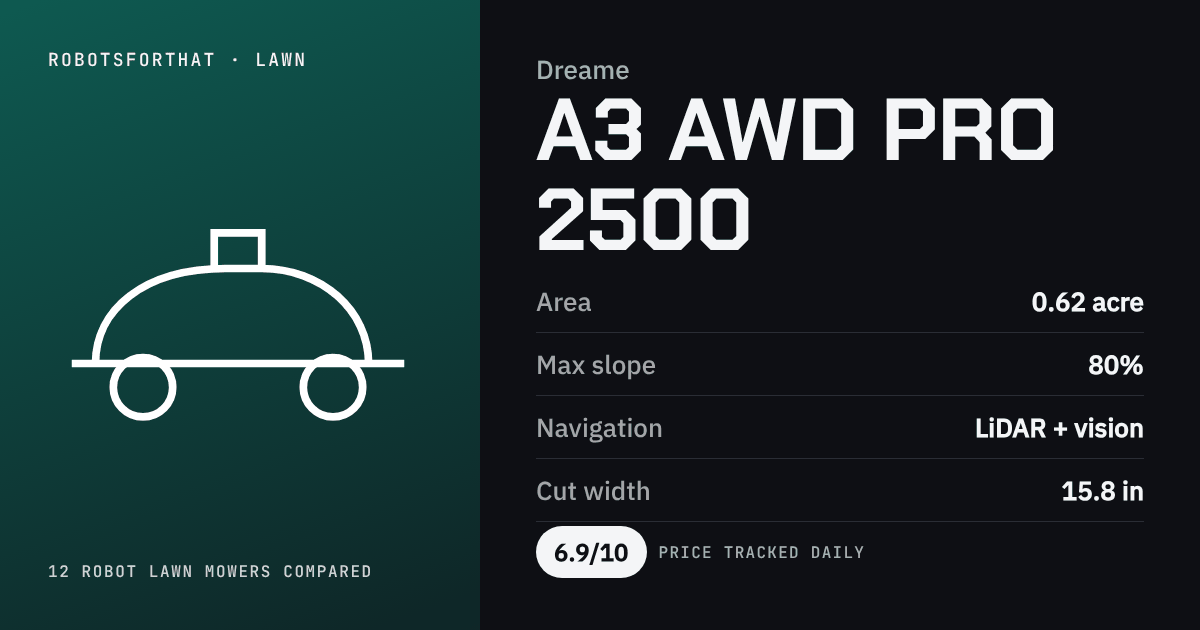 Our top pick from DreameDreame A3 AWD Pro 2500$1,700Compare robot lawn mowers →
One email for recalls, bad updates and new fixes for Dreame. Nothing else.
Dreame recalls
US Consumer Product Safety Commission database, checked dailyOK
We read every question. When several owners ask the same thing, the answer goes on this page.
How Dreame mower error messages work
Dreame mowers do not use number codes in their manuals. When the mower stops, the Dreamehome app shows a short message, and the user manual has a troubleshooting table with the cause and the fix for each one.
The A2 and the A3 AWD series share the same list. The only extra entry in the A3 AWD manuals is Abnormal vibration. On the A3 AWD, Wheel error names one of four wheels, left or right and front or rear, because the mower drives all four.
The general fix sequence
Dreame's fixes follow the same order for most messages. Work through it before you contact support.
- Clear the physical cause: remove obstacles, move the mower to an open, flat spot inside the map, or clear the station.
- Clean the part named in the message: wheels, blade disc, LiDAR, front camera or charging contacts.
- For safety stops, enter the PIN on the mower and confirm.
- Restart the mower.
- If the message keeps coming back, contact Dreame after-sales service.
Heat and cold limits
Several messages are about temperature. Dreame stops the mower when the battery reaches 60 °C and warns that charging may fail at 45 °C and above or at 6 °C and below. The LiDAR sends the mower back to the station at 80 °C and switches off at 90 °C. In each case Dreame's advice is to run the mower when the air is below 40 °C and to park it in the shade.
Dreame A3 AWD models in our rankings
Questions people ask
Does Dreame use number error codes on its robot mowers?
Not in its manuals. Dreame's A2 and A3 AWD manuals list errors as text messages, such as Robot trapped or Charging error, each with a cause and a fix.
How do I clear Robot lifted or Emergency stop on a Dreame mower?
Put the mower back on flat ground, then enter the PIN code on the mower and confirm. Dreame uses the PIN for every safety stop.
What does LiDAR is blocked mean on a new Dreame mower?
On a new mower it usually means the LiDAR protective cover is still on. Remove it and try again. If the LiDAR is very dirty, clean it with a lint free cloth.